Virtual staging should only ever change what's in a room — never the room itself. Furniture, decor, and lighting mood are fair game. Walls, windows, doors, floors, and fixtures are not. When an AI edit blurs that line, you get a photo that misrepresents the property — which is the one mistake that turns a helpful marketing tool into a listing liability.
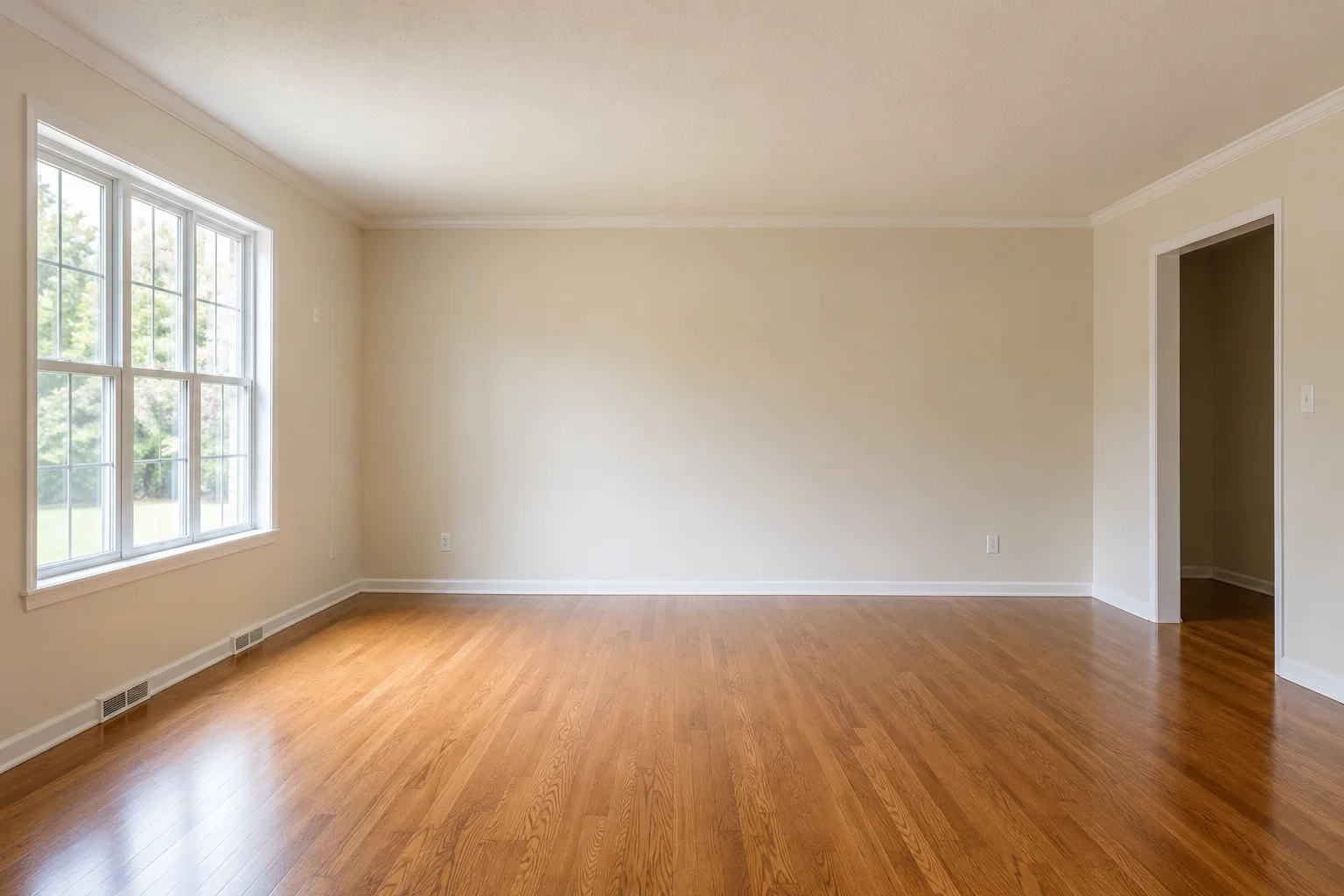
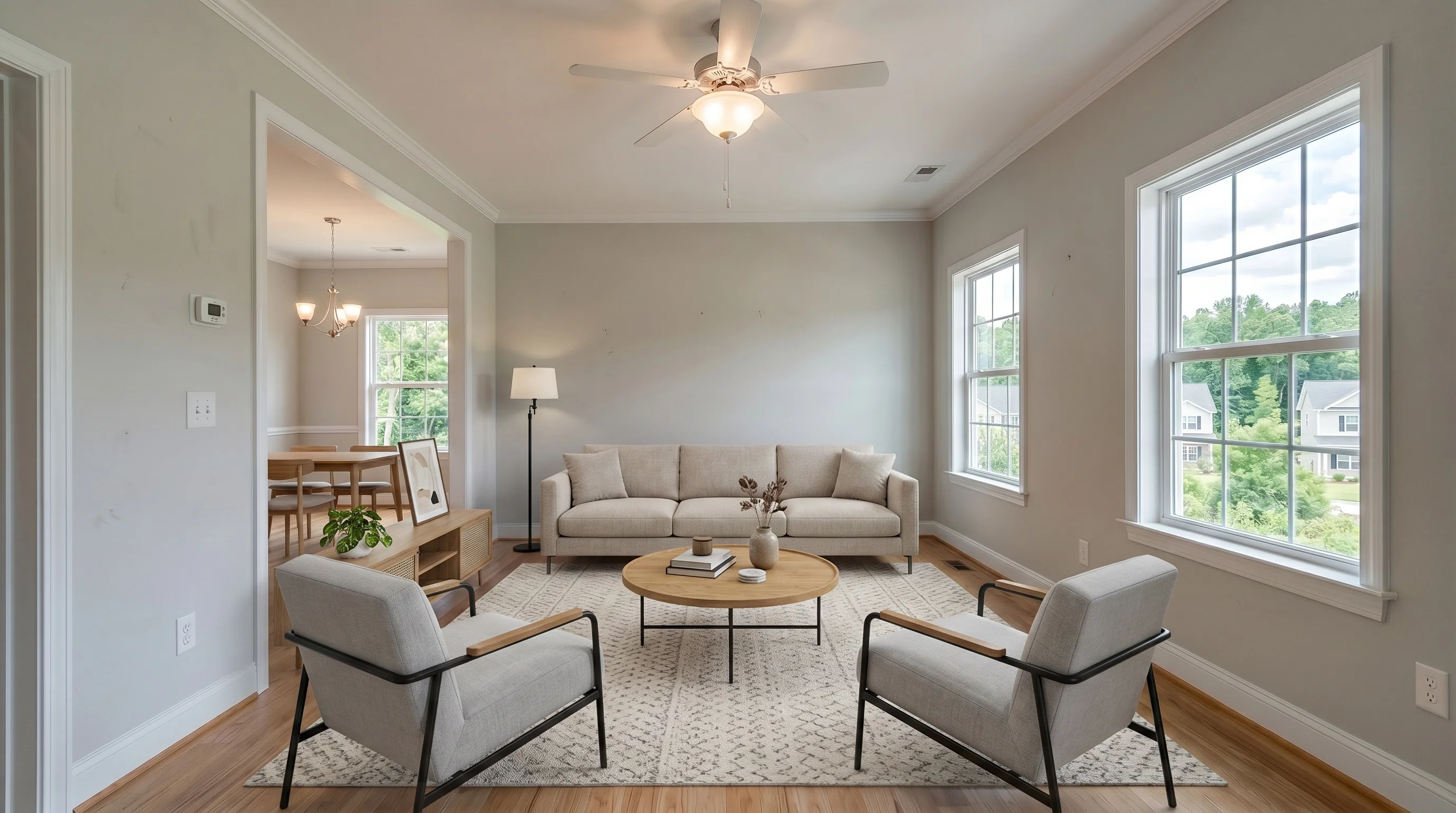 BeforeAfter
This isn't a hypothetical concern. We read through real customer complaints about AI-staged photos — ours and the industry's — and the pattern is consistent: the edits people flag aren't "the couch looks a little fake." They're "there's a fireplace in this photo that doesn't exist" or "the bathroom door disappeared." Those are the errors worth checking for before a photo goes anywhere near an MLS listing.
The 5-point check before you publish
Run through this on the staged photo, side by side with the original, before you download and use it.
1. Walls, windows, and doors are all still there
Count them. A missing door, a window that's moved, or an opening that's been filled in are the most common structural errors — and the easiest to miss if you only glance at the furniture. If a wall or window looks different from the original, don't publish that image; regenerate it or use a different room.
2. The floor plan hasn't changed
Structural staging errors sometimes show up as a room that reads bigger or differently shaped than the original — a wall pushed back, a doorway that's shifted position. This is the hardest one to catch because it's subtle. Overlay the before and after mentally: does the camera angle and room geometry still match?
3. No invented fixtures
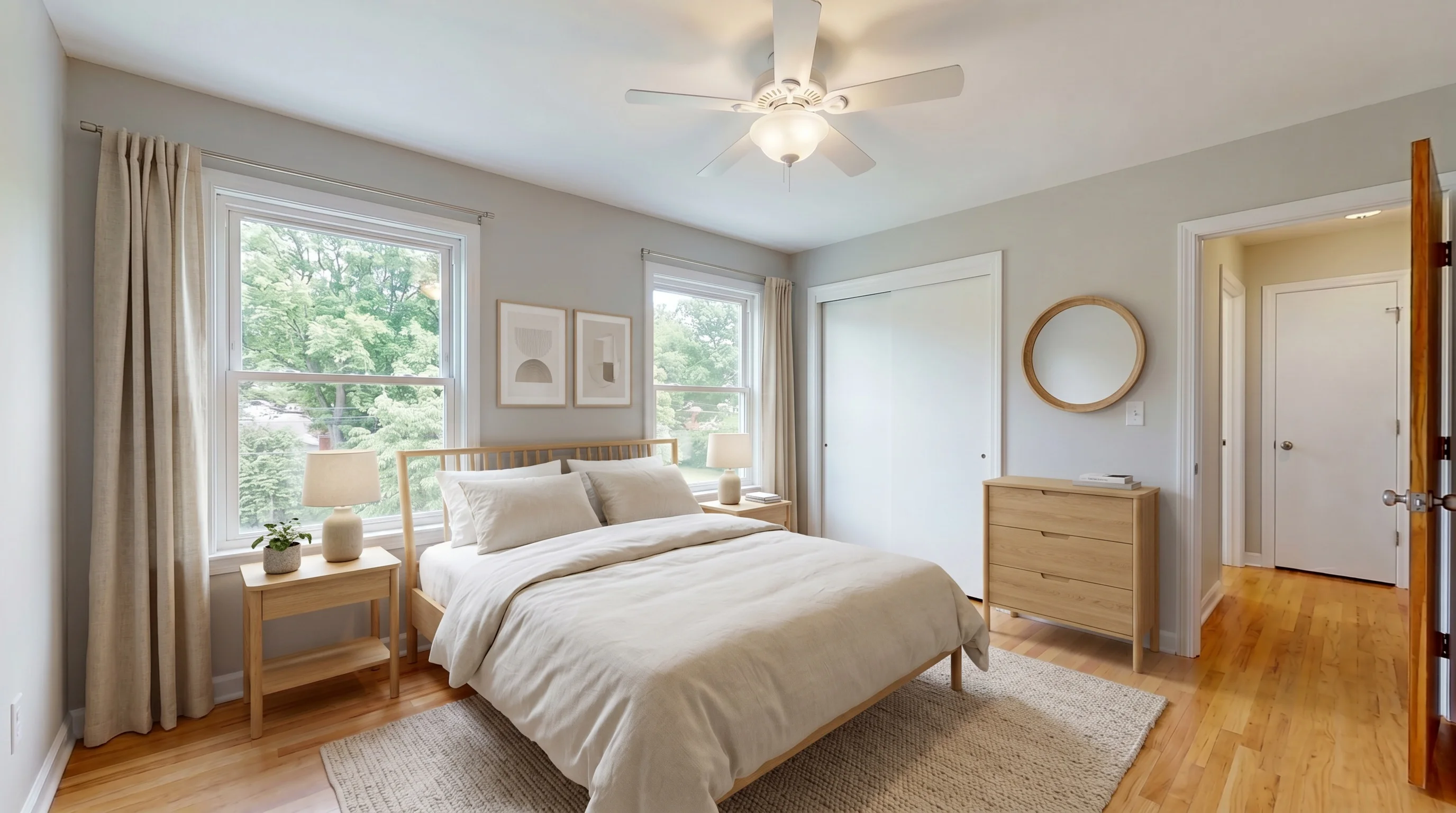
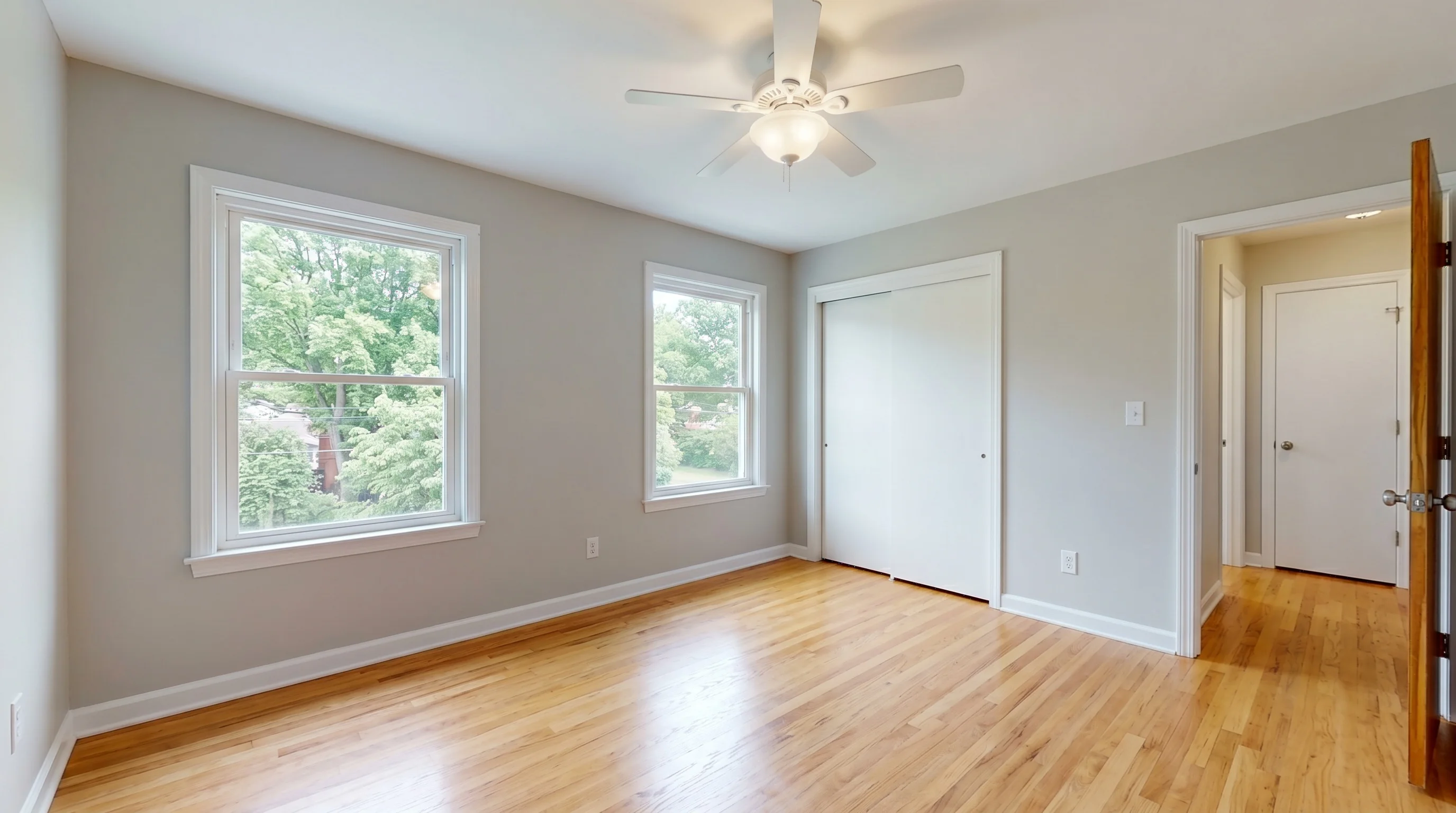
Light fixtures, ceiling fans, built-in shelving, fireplaces — these should only appear in a staged photo if they were in the original. A generative model that's not constrained can add a fixture because it "fits" the style, and that's a real problem: a buyer who shows up expecting a fireplace that isn't there is a disclosure issue, not just an awkward moment.
4. Text on props is legible or absent — not garbled
Books, artwork, labels on decor — AI models occasionally render illegible or garbled text on small objects. It's a cosmetic flaw, not a misrepresentation issue, but it's the fastest way for a buyer to spot "this photo was AI-generated" and wonder what else was changed. If you see it, regenerate or crop it out.
5. Furniture placement matches what you asked for — not just what looks nice
If you gave a specific instruction ("keep the reading nook empty," "no rug over the hardwood"), check that the result actually followed it, not just that the room looks good. AI staging tools weigh your instruction against general style guidance, and specific requests can lose out to what the model considers a more "complete" room. This is worth its own read — see how to write instructions AI staging will actually follow.
Why this happens
Virtual staging tools that use generative AI are, technically, generating new pixels — not filling in a template. A tool with a real structure lock constrains the model to furniture, decor, and lighting, and leaves architecture alone by design. But "designed to" and "always does" aren't the same thing, especially on unusual rooms: heavy shadows, cluttered originals, or odd angles give the model more room to improvise. That's not an excuse — it's why the check above exists. Spot an error, don't publish it, regenerate or pick a cleaner source photo.
For what it's worth, this is also true of manual Photoshop staging done badly, and of the rare bad day from a human design service. The check applies regardless of who or what did the edit.
What to do if you catch an error
- Regenerate. On VirtualStaging.tools, a retry on the same photo doesn't cost you another photo from your quota — you get up to 3 versions of a photo total on the free tier (first generation plus 2 retries), and up to 15 total on paid plans (first generation plus 14 retries), before further generation on that photo is blocked. A second pass frequently fixes it.
- Try a different design style. Some errors are style-specific (an ornate style can prompt more invented decor than a minimalist one).
- Use a cleaner source photo. Heavy shadows, extreme angles, and cluttered originals are the most common triggers for structural drift. A photo shot straight-on with even lighting gives the AI the least room to guess.
- Don't publish it and hope no one notices. An invented fixture or a moved wall is the kind of error a buyer catches at the showing — and it's worse for trust than a delayed listing.
Disclosure still applies, structure lock or not
Even a flawless virtual staging edit is a digitally altered photo, and most MLS boards expect that disclosed regardless of how accurate the edit is. Passing this checklist tells you the photo isn't misrepresenting the property — it doesn't replace the disclosure caption. See our complete guide to virtual staging and MLS disclosure for the specifics by state and board.
Frequently Asked Questions
Can AI virtual staging change the structure of a room?
It shouldn't. Tools with a genuine structure lock constrain the AI to furniture, decor, and lighting, leaving walls, windows, doors, and floors as they were in the original photo. But generative AI can still make mistakes, especially on cluttered or oddly-angled source photos — which is why checking the result against the original before publishing matters, regardless of which tool you use.
What is AI hallucination in virtual staging?
Hallucination is when a generative AI model invents a detail that wasn't in the original photo and wasn't asked for — an extra light fixture, a fireplace, a doorway that's shifted position, or garbled text on a book spine. It happens because the model is generating new pixels, not filling in a template, and it's more likely on complex or poorly-lit source photos.
Is virtual staging illegal if it changes the room?
Virtual staging itself is legal and widely accepted when disclosed — the problem is misrepresentation, not the staging technique. Adding furniture is fine. Adding a fireplace that doesn't exist, or removing a structural defect, crosses into misrepresenting the property, which can violate MLS rules and, in some cases, disclosure law. Keep the original photo on file and check the result before publishing.
How do I know if a virtual staging photo has an error?
Compare it side by side with the original: count the walls, windows, and doors; check that no fixtures were added; check the floor plan reads the same; and check any text on props is legible or absent, not garbled. If your tool supports custom instructions, confirm the result actually followed them. If anything looks off, regenerate before you download.
Do all virtual staging tools have structure lock?
No — it varies by tool and isn't always disclosed as a named feature. Some services constrain the AI tightly to furniture and lighting; others give the model more freedom, which increases both creative range and the risk of unwanted changes. If a tool doesn't mention how it constrains edits, treat every result as unverified until you've checked it against the checklist above.
What should I do if my virtual staging result has a mistake?
Don't publish it. On VirtualStaging.tools, regenerating the same photo doesn't use up another one of your photos — you get up to 3 versions total on the free tier and up to 15 total on paid plans before generation on that photo is blocked (it doesn't quietly convert into a new charge). A second pass frequently resolves the issue. If it persists, try a different design style or a cleaner source photo (even lighting, straight-on angle). If a tool has no regeneration option, that's a sign to reconsider it for listing photos.
Does structure lock mean the staged photo is 100% accurate?
It means the AI is designed to leave architecture alone — not that every result is guaranteed error-free. Generative models can still misfire, particularly on unusual rooms. Structure lock reduces the risk significantly compared to an unconstrained tool, but the pre-publish check in this guide is what actually catches the exceptions.
Can virtual staging remove things from a photo, not just add furniture?
Yes, but that's typically a separate mode from staging — often called a furniture eraser or decluttering tool — because removing existing items and adding new furniture are different jobs with different failure modes. Using the wrong mode (asking a staging tool to declutter, for example) is a common source of unexpected results. See how to write instructions AI staging will actually follow for the distinction.
See Structure Lock in Action
Upload a listing photo and stage it free — the staging is constrained to add furniture and leave walls, windows, and floors alone. 3 photos free, no credit card.
Try 3 Free PhotosMore from the blog
Related reading

Virtual Staging Photos: How to Get Listing-Ready Shots
What virtual staging photos are, how to get great ones, and the MLS disclosure rules — a practical 2026 guide for agents staging their own listings.
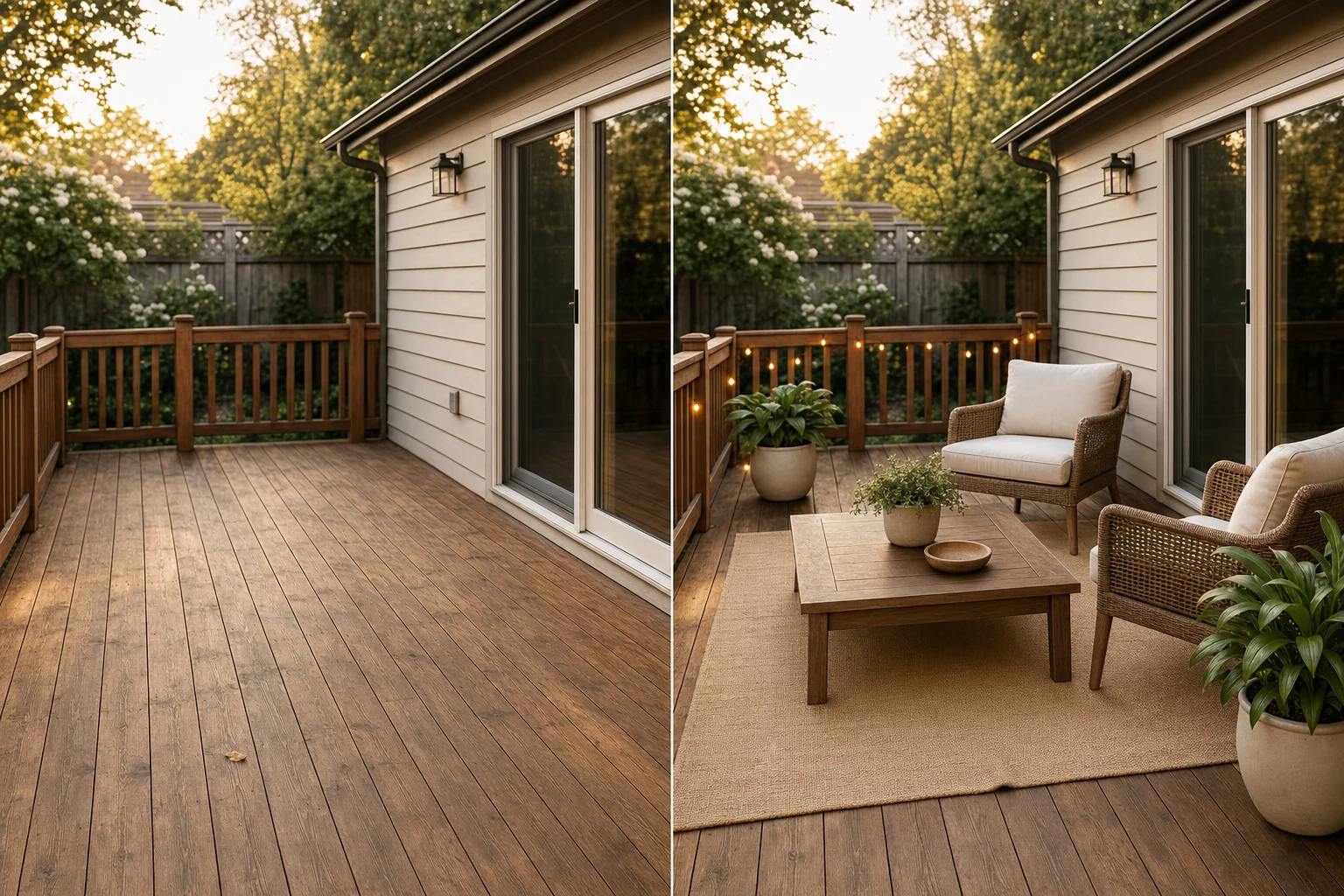
Exterior Virtual Staging: Patios, Decks & MLS Rules
Exterior virtual staging adds patio furniture and curb-appeal decor to listing photos. Here's what's safe, what crosses MLS lines, and what it costs.
Best Source Photos for AI Virtual Staging
AI staging tools don't reject a bad photo — they quietly stage it badly. A pre-upload checklist for angle, light, resolution, and what to never upload.