A staged photo "looks fake" for one of seven specific, fixable reasons — not because AI staging is inherently unconvincing. Most bad results trace back to furniture scale, perspective, overcrowding, style mismatch, lighting, structural drift, or a source photo that was never going to work. This guide walks through each one: what it looks like, why it happens, how to fix it, and whether a regenerate solves it or you need a different photo entirely.
A tool's design affects how often you hit these in the first place — a genuine structure lock (constraining the model to furniture, decor, and lighting, and leaving architecture alone) removes one of the seven causes almost entirely and doesn't change how you'd fix the other six. It's not a cure-all, which is exactly why the rest of this guide exists.
The seven ways virtual staging goes wrong
| Problem | What buyers notice | Usually fixed by |
|---|---|---|
| Furniture scale | "That bed wouldn't fit in there" | Regenerate |
| Perspective mismatch | Furniture that looks pasted on, wrong angle | Regenerate |
| Overcrowding | Room feels staged, not livable | Regenerate with a lighter instruction |
| Style mismatch | Furniture that clashes with the home's actual character | Regenerate with a different style |
| Lighting and shadows | Furniture that looks "pasted in," no shadow | Regenerate |
| Structure drift | A window, door, or fixture that wasn't in the original | Regenerate or switch photos |
| Unsuitable source photo | Every generation looks a little off, no fix works | Switch photos |
The first five are the model making a judgment call that didn't land — a regenerate usually fixes them. The last two are worth checking closer, because one is a publishing risk and the other means the photo itself is the problem, not the AI.
1. Furniture is the wrong scale
What it looks like: A king bed that couldn't physically fit the wall it's against. A sofa that reads as a loveseat, or a "sectional" with the footprint of an armchair. It's the single most common complaint in AI staging — buyers don't always name it consciously, they just sense something's "off," then feel misled when the room doesn't match the photo at the showing.
Why it happens: To make a layout "work" visually in a room that's tighter than ideal, the model sometimes shrinks furniture rather than choosing a smaller piece or a sparser layout. Stellar MLS — one of the largest MLSs in the US — explicitly prohibits "placing small furniture to make a room appear larger than it actually is," which tells you how common this specific failure is across the industry, not just AI tools.
Fix it: Regenerate. If it repeats, try a more specific instruction — "a loveseat, not a full sectional" beats "add furniture" — see our guide on writing instructions AI staging will actually follow. For the deeper mechanics of what makes furniture read as real-scale versus catalog-flat, see Virtual Furniture Staging.
Regenerate or switch photos? Regenerate. Scale errors are a model judgment call on a specific attempt, not a property of the source photo — a second or third pass on the same image usually lands.
2. Perspective doesn't match the room
What it looks like: A rug that doesn't sit flat against the floor plane. A chair angled toward the wrong wall. Furniture that looks like a cutout dropped onto the photo rather than something standing inside it.
Why it happens: The model has to infer the room's vanishing point and floor plane from a 2D photo, and wide-angle or fisheye-distorted shots — common with real estate wide lenses — make that inference harder. The more extreme the lens distortion, the more room the model has to get an angle wrong.
Fix it: Regenerate first; a second pass on the same photo often corrects it without any change on your end. If it repeats across multiple attempts, the source photo's angle is likely the actual cause — see #7 below.
Regenerate or switch photos? Regenerate first. If two or three attempts all show the same angle problem, treat it as a source-photo issue instead of retrying indefinitely.
3. The room is overfurnished
What it looks like: A living room with a sectional, two armchairs, a bench, and a side table crammed into a footprint that would realistically hold two of those. The photo reads as "staged" in the worst sense — art-directed rather than livable.
Why it happens: Left with an open instruction, a model can default to a "complete" furnished look rather than a realistic one, especially in open-plan or larger rooms where it has more space to fill.
Fix it: Regenerate with a lighter, more specific instruction — name the pieces you want ("a sofa and a coffee table, nothing else") instead of leaving it open-ended. A sparser room usually reads as more credible, not less; buyers respond better to a room they can picture their own furniture in than one where every inch is filled.
Regenerate or switch photos? Regenerate. This is an instruction and generation issue, not a source-photo issue.
4. The style doesn't match the room or the rest of the listing
What it looks like: A mid-century modern living room next to a farmhouse kitchen in the same gallery. Furniture that doesn't match the home's actual character — ornate traditional pieces in a stripped-down modern condo, or the reverse.
Why it happens: Without a specified style, the model defaults to whatever it judges as broadly appealing, which doesn't always match the property's actual architecture, finishes, or target buyer.
Fix it: Regenerate with an explicit style pick, and try to keep the style consistent across every room in the same listing gallery — mismatched styles between photos read as inconsistent even when each individual photo looks fine on its own.
Regenerate or switch photos? Regenerate with a style selection instead of an open-ended request.
5. Lighting and shadows look synthetic
What it looks like: Furniture with no shadow underneath it, or a shadow falling in a direction that doesn't match the room's actual light source. Flat, catalog-style lighting that doesn't match the warmth or direction of light in the rest of the photo.
Why it happens: The model has to infer the room's light source — window position, time of day, artificial lighting — and relight the furniture to match. Rooms with mixed or ambiguous lighting (multiple windows, a mix of natural and artificial light) give it more to get wrong.
Fix it: Regenerate — lighting errors are usually attempt-specific, not something a different instruction fixes directly. If a room consistently produces flat-looking results, a straight-on shot in even daylight (rather than harsh side light or dusk) gives the model an easier read.
Regenerate or switch photos? Regenerate. If it's consistently bad on the same photo after several tries, the source lighting itself may be too extreme — reshoot if possible.
6. Walls, windows, or fixtures changed
What it looks like: A fireplace that wasn't in the original. A window that's moved or disappeared. A doorway that's been filled in. This is the one failure mode that isn't just cosmetic — it's a misrepresentation risk if it reaches an MLS listing.
Why it happens: A tool with a genuine structure lock is designed to constrain the model to furniture, decor, and lighting only — but "designed to" and "always does" aren't the same thing, especially on cluttered, heavily shadowed, or oddly angled source photos that give the model more room to improvise.
Fix it: Never publish a photo with this error. Regenerate, or use a cleaner source photo if it repeats. This deserves a closer look than a quick regenerate-and-move-on — see our full pre-publish structure checklist for exactly what to compare against the original before you use any staged photo.
Regenerate or switch photos? Regenerate once. If the same photo produces structural changes on a second attempt, switch to a cleaner, more evenly lit source photo rather than continuing to retry.
7. The source photo was never going to work
What it looks like: Every attempt on the same photo has some problem — even when each individual issue above gets fixed, a new one shows up on the next generation. Three or four regenerates in, nothing looks quite right.
Why it happens: Some source photos are structurally hard: extreme wide-angle distortion, very heavy shadows, an oddly cropped or obstructed view of the room, or a room shot from an angle that doesn't clearly establish scale. No amount of regenerating fixes a source photo the model can't reliably read.
Fix it: Stop regenerating and check the photo itself — is it sharp, evenly lit, and shot roughly straight-on with the full room in frame? If not, that's a reshoot, not a retry. And if the room has existing furniture or clutter creating the confusing read, the fix isn't staging at all — it's running Furniture Removal first to get a clean empty room, then staging that result.
Regenerate or switch photos? Switch photos (or tools). This is the one failure mode that regenerating doesn't solve, because the problem lives in the input, not the attempt.
When it's the tool, not the photo
If a clean source photo — sharp, evenly lit, shot straight-on — still produces one of the first six problems repeatedly, that's a different signal than a bad source photo: it means the tool itself is inconsistent on rooms it should handle easily. That's worth acting on rather than working around indefinitely. Our comparison of virtual staging software covers what separates tools that hold scale and lighting reliably from ones that don't, so you're not guessing at what to switch to.
What a second attempt actually costs you
On a paid plan, this is straightforward: click regenerate on the same photo and it doesn't use up another slot from your quota — a photo gets up to 15 versions total (the first generation plus up to 14 retries) before you hit the cap. A generation takes under a minute, so testing two or three attempts on a room that isn't landing costs a few minutes, not another photo.
The free tier doesn't have a dedicated regenerate button yet. But the same free-retry allowance still applies if you upload that exact photo again instead of a different one — VirtualStaging.tools recognizes it as the same original and doesn't charge you for it, up to 3 versions total (the first generation plus up to 2 retries). The difference from paid is convenience — one click versus re-uploading the same file — and the cap itself: 3 versions on free versus 15 on paid.
Either tier, once a photo hits its version cap, further generation on that exact photo is blocked rather than quietly billed as a new one — re-uploading the identical file again won't reset the count. At that point the fix is a genuinely different photo, not another retry.
That's also why the decision in each section above defaults to "regenerate first" — for six of the seven problems, a second attempt on the exact same photo is free on any tier and often just works. Only when the same failure repeats across multiple attempts does it become a source-photo problem worth solving differently.
Frequently Asked Questions
Why does my AI virtual staging look fake?
Almost always one of seven things: wrong furniture scale, mismatched perspective, an overfurnished room, a style that doesn't fit the property, synthetic-looking lighting or shadows, changed architecture, or a source photo the model can't read well. Most of these fix with a regenerate; a source photo issue needs a different photo instead.
Why is the staged furniture too small or too big for the room?
This is the most common complaint in AI staging. The model sometimes shrinks furniture to make a layout "fit" visually rather than choosing a smaller piece or sparser layout — Stellar MLS explicitly bans this practice, which shows how widespread it is. Regenerate, and if it repeats, specify the piece size you want ("a loveseat, not a sectional") instead of an open-ended instruction.
Why does the staged furniture look like it's floating, with no shadow?
The model failed to correctly infer the room's light source and relight the furniture to match it. This is usually attempt-specific — regenerate first. If a particular photo consistently produces flat lighting, the source photo's own lighting (harsh side light, mixed natural/artificial) may be giving the model too little to work with.
Can I fix a bad virtual staging result without starting over?
Yes. On paid plans, click regenerate on the same photo — up to 15 versions total (first generation plus 14 retries) before you hit the cap. On the free tier, upload that exact same photo again rather than a different one; VirtualStaging.tools recognizes it and treats it as a free retry, up to 3 versions total (first generation plus 2 retries), before further generation on that photo is blocked.
Is there a regenerate button on the free tier?
Not yet — paid plans have a one-click regenerate on the result page; the free tier doesn't have that button today. To get the same free retry on free, upload the identical photo file again instead of a different one. The billing outcome is the same either way, up to 3 versions total on free (15 on paid) — past that cap, generation on that photo is blocked rather than billed as a new one.
How many times can I regenerate the same photo for free?
3 versions total on the free tier — your first generation plus up to 2 retries, by re-uploading the same photo (there's no dedicated regenerate button on free yet) — and 15 versions total on paid plans (first generation plus 14 retries, one click). Past that cap, generation on that specific photo is blocked, not billed as a new one. In practice, most fixable problems (scale, perspective, lighting, style, overcrowding) resolve within the first one or two attempts.
Why did the AI change a window, door, or wall that wasn't supposed to move?
This is structural drift, and it's the one staging error that's a real publishing risk, not just a cosmetic one. A tool with a genuine structure lock is built to prevent it, but cluttered or oddly angled source photos give the model more room to improvise. Never publish a photo with this error — regenerate, and if it repeats, switch to a cleaner source photo. See our full structure checklist before publishing any staged photo.
Is there a compliance risk if I accidentally publish a staged photo that looks obviously fake?
An unconvincing staged photo is a marketing problem, not automatically a disclosure violation — the legal requirement is that you label a digitally altered photo as virtually staged, regardless of how good or bad the edit looks. The bigger risk is publishing a photo with structural drift (a fireplace or window that wasn't there) without catching it, since that can cross into misrepresenting the property. Either way, disclosure is required — see our listing photo disclosure tool for compliant wording and current MLS rules.
Why does virtual staging sometimes add too much furniture?
Left with an open-ended instruction, the model can default to a "fully furnished" look rather than a realistic, livable one — especially in larger or open-plan rooms. Regenerate with a specific instruction naming only the pieces you want, rather than leaving it open.
When should I use a different source photo instead of regenerating?
When the same problem — or a rotating set of different problems — shows up across three or more attempts on the same photo. That's a sign the photo itself (extreme angle, heavy shadow, obstructed view) is the limiting factor, not any single generation. Check that the photo is sharp, evenly lit, and shot roughly straight-on before staging it again.
Will buyers notice if my virtual staging looks fake?
Yes — buyers who spot an obvious scale error, floating furniture, or mismatched architecture don't just dismiss that one photo, they start questioning the rest of the listing's photos too. A photo that looks slightly sparse but believable beats one that's fully furnished but reads as artificial.
Is there a way to test virtual staging quality before I pay for a plan?
Yes — a free tier that lets you stage real rooms (not demo photos) is the only reliable way to judge a tool's quality on your actual listings. VirtualStaging.tools gives 3 free staged photos, no credit card required, so you can check scale, lighting, and style match before committing to anything.
Does regenerating a photo count against my monthly quota?
No — a photo's version count (up to 3 total on the free tier by re-uploading the same photo, up to 15 total on paid plans via the regenerate button) is separate from your photo quota. Once a photo hits its version cap, VirtualStaging.tools blocks further generation on that exact photo rather than quietly billing it as a new one — you'd need a genuinely different photo to keep going. Staging a different room always counts as a new photo against your quota, regardless of tier.
Stop Guessing — Regenerate for Free
Retrying a photo doesn't cost you another slot. Upload a room and see for yourself — 3 photos free, no credit card.
Try Virtual Staging FreeMore from the blog
Related reading
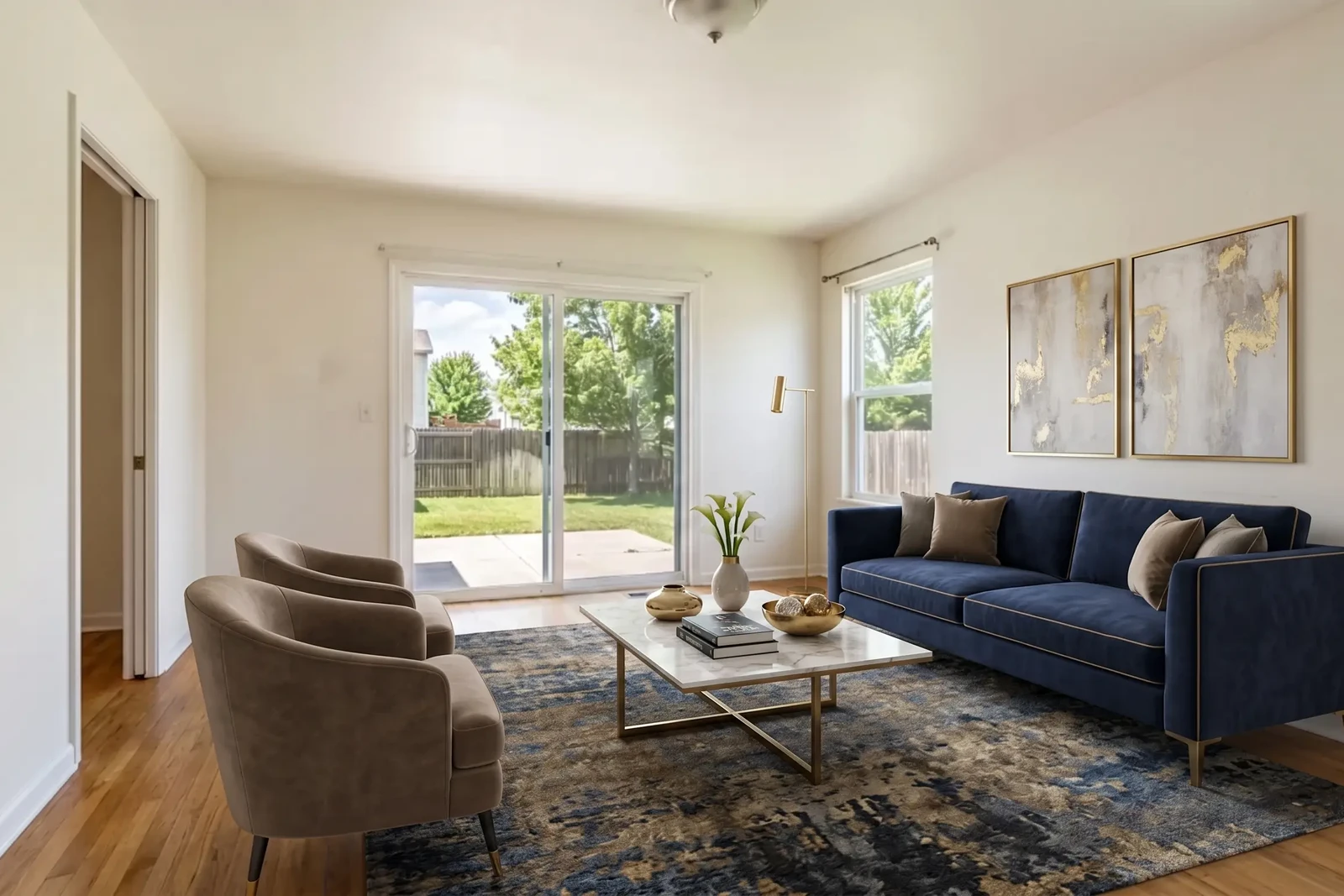
Virtual Staging in Real Estate: The Agent's ROI Guide for 2026
How real estate agents use virtual staging to sell listings faster, reduce costs, and win more clients — with disclosure requirements, workflow tips, and ROI data.
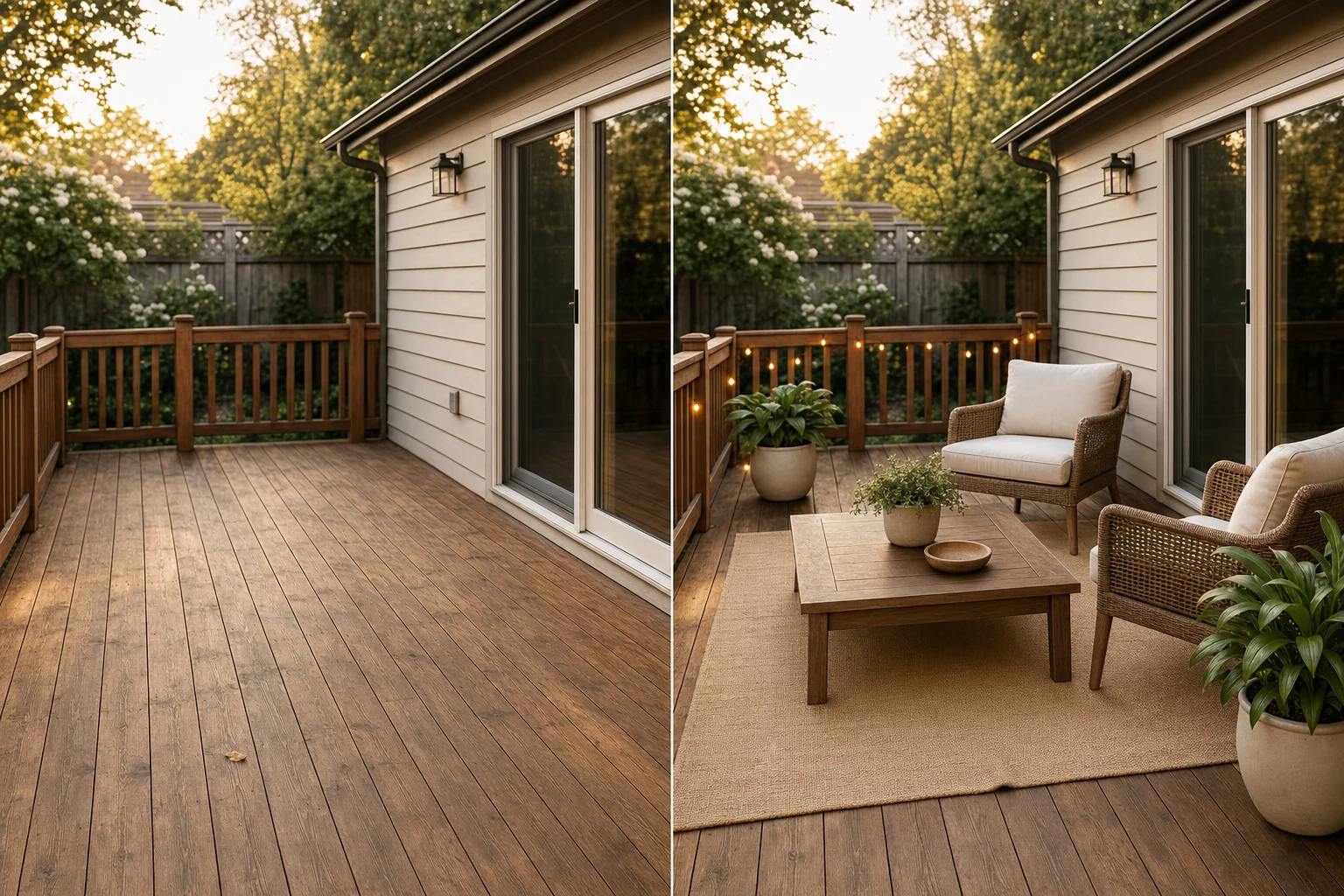
Exterior Virtual Staging: Patios, Decks & MLS Rules
Exterior virtual staging adds patio furniture and curb-appeal decor to listing photos. Here's what's safe, what crosses MLS lines, and what it costs.
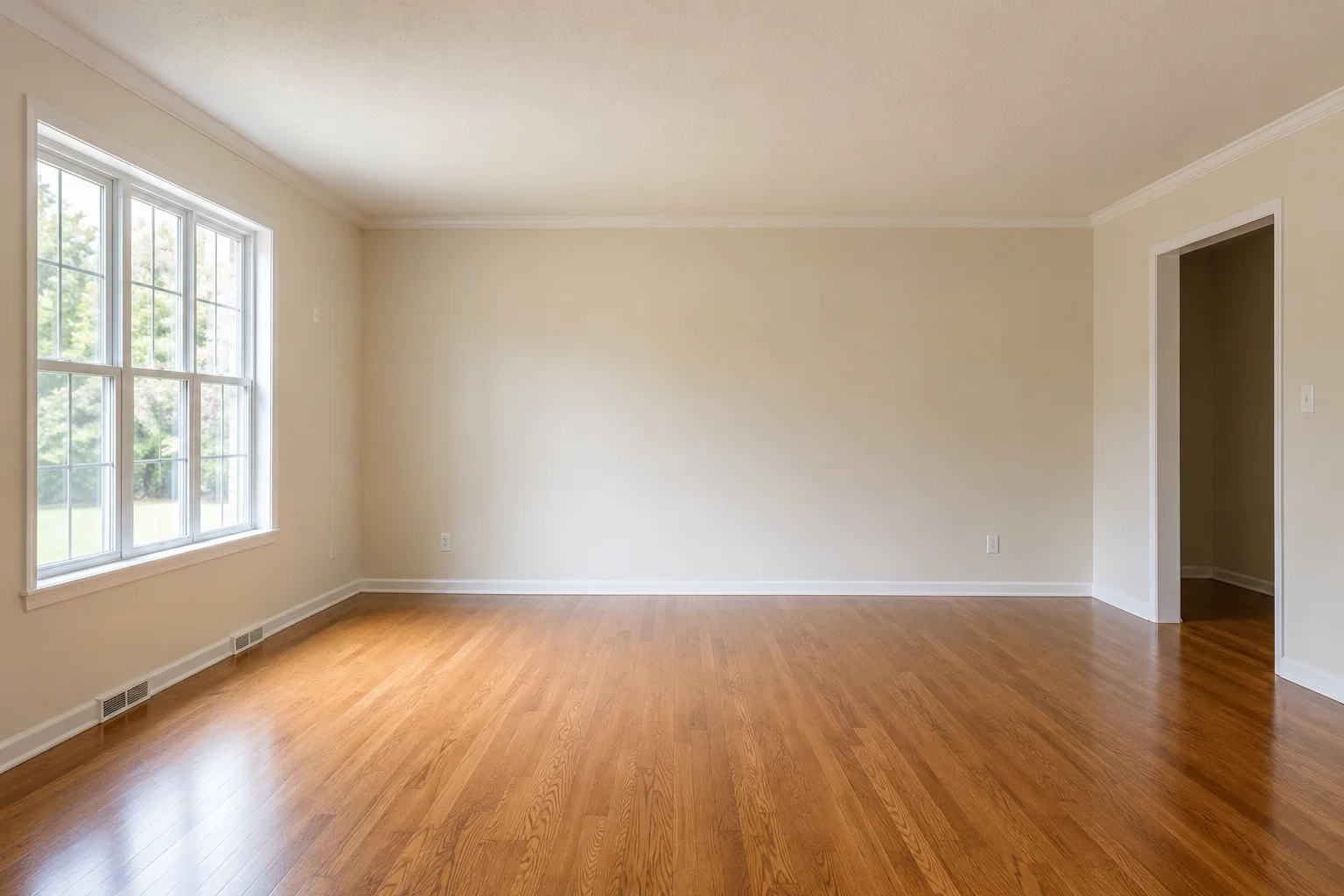
Best Source Photos for AI Virtual Staging
AI staging tools don't reject a bad photo — they quietly stage it badly. A pre-upload checklist for angle, light, resolution, and what to never upload.